

Documentation Index
Fetch the complete documentation index at: https://docs.payglocal.in/llms.txt
Use this file to discover all available pages before exploring further.
What is Magento?
Magento is an open-source eCommerce platform built for B2B and B2C businesses. The platform allows building strong and powerful storefronts, which can be customised as per the business requirements. In 2018, this open-source eCommerce platform was acquired by Adobe and is now known as Adobe Commerce.Magento with PayGlocal
PayGlocal integration with Magento allows merchants to accept cross-border payments securely through internet banking and debit/credit cards. The Magento extension makes it possible for merchants to easily integrate the PayGlocal Payment Gateway with their stores.Before following the steps below, ensure you have a PayGlocal merchant account. Contact us to create one.
Plugin Download
Download the extension based on your Magento and PHP version. If you are not able to see the download link for your version, kindly reach out to your account manager.Plugin Installation
Copy extension files
Unzip the extension file and copy all the folders to the Magento root directory.
Log in to Magento admin and clear cache
Log in to your Magento admin panel and go to System → Cache Management. Select all the cache and refresh.
Configuration
Navigate to PayGlocal settings
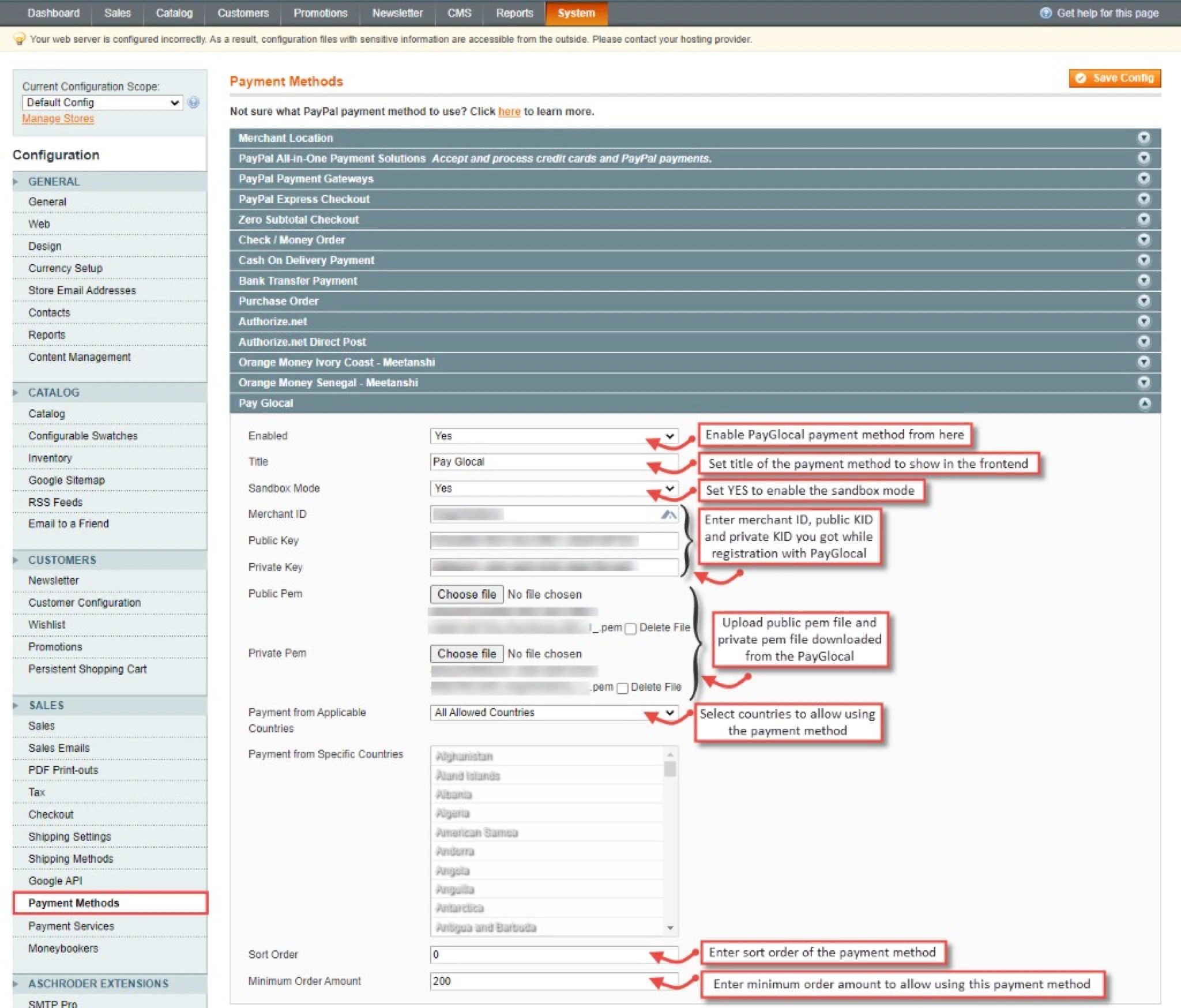
Log in to your Magento admin panel and go to System → Configuration → Sales → Payment Methods → PayGlocal.
Field Reference
| Field | Description |
|---|---|
| Enabled | Select Yes to enable the PayGlocal extension. |
| Title | Enter a custom title for the payment method shown to customers on the frontend. |
| Sandbox Mode | Enable or disable sandbox mode as per your requirements. |
| Merchant ID | Enter your Merchant ID from the PayGlocal dashboard — visible in the top bar when logged in. |
| Public Key | Enter the PayGlocal public key from the merchant account dashboard. |
| Private Key | Enter the PayGlocal private key from the merchant account dashboard. |
| Public PEM | Upload the public PEM file downloaded from the PayGlocal merchant account dashboard. |
| Private PEM | Upload the private PEM file downloaded from the PayGlocal merchant account dashboard. |
| Payment from Applicable Countries | Select whether to allow customers from all countries or only selected countries. |
| Payment from Specific Countries | Select the specific countries allowed to use the PayGlocal payment gateway. |
| Sort Order | Enter the sort order for PayGlocal in case of multiple payment methods in your store. |
| Minimum Order Amount | Enter the minimum order amount required to use the PayGlocal payment gateway. |
For details on fetching your Merchant ID, keys, and PEM files, refer to the Key Management section.
Setup Successful — Once you have followed all the steps above, your Magento store is ready to accept online payments through PayGlocal.