

Documentation Index
Fetch the complete documentation index at: https://docs.payglocal.in/llms.txt
Use this file to discover all available pages before exploring further.
What is a Payment Button?
A Payment Button is a no-code solution that allows you to add a payment button to your website without any API integration. When you create a payment button in the GCC dashboard, you receive JavaScript and HTML scripts that you can simply paste into your website.When to Use Payment Button?
Payment Button is ideal when:- Dynamic Amounts: The payment amount needs to be entered by the customer (not fixed)
- Quick Website Integration: You want to add payment functionality without backend development
- No API Knowledge Required: You can embed payments by just copying and pasting code
How to Create a Payment Button
Navigate to Payment Button
Log in to the GCC dashboard, click on Payment Products in the left sidebar, then select Payment Button.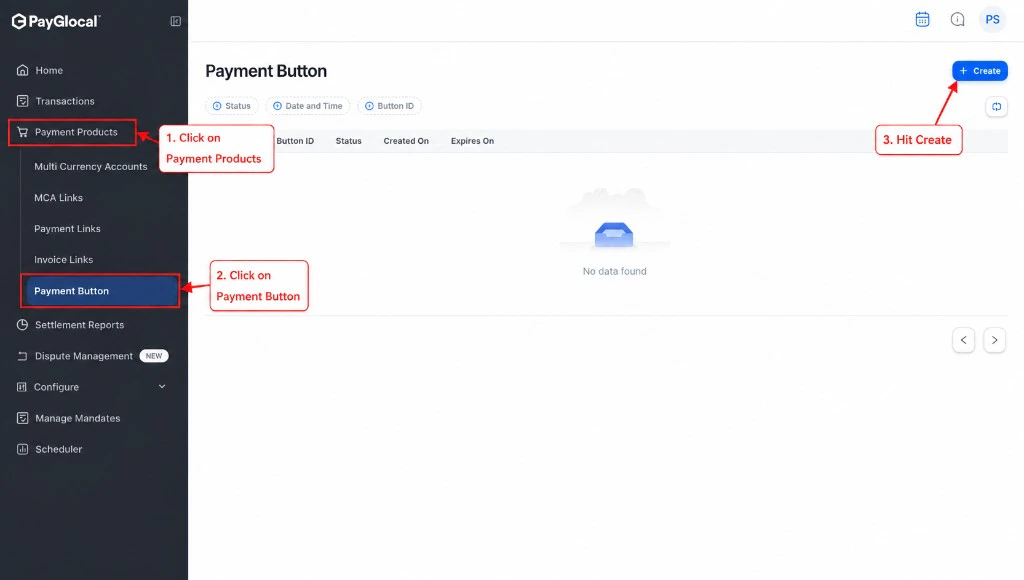
Click Create
Click the Create button in the top right corner to open the payment button creation form.
Configure Payment Button
Fill in the required details: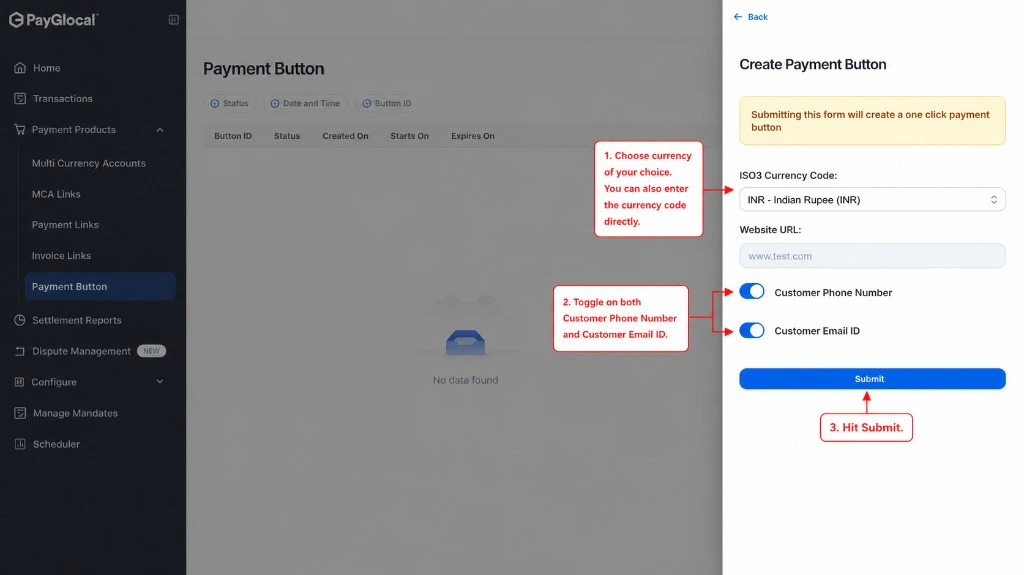
- ISO3 Currency Code: Select the currency (e.g., INR for Indian Rupee)
- Website URL: Enter your website URL where the button will be embedded
- Customer Phone Number: Toggle on/off to collect customer phone number
- Customer Email ID: Toggle on/off to collect customer email
Copy the Scripts
After submission, open the button from the Payment Button dashboard. The Payment Button is retrieved panel shows your Button ID and Embed Code.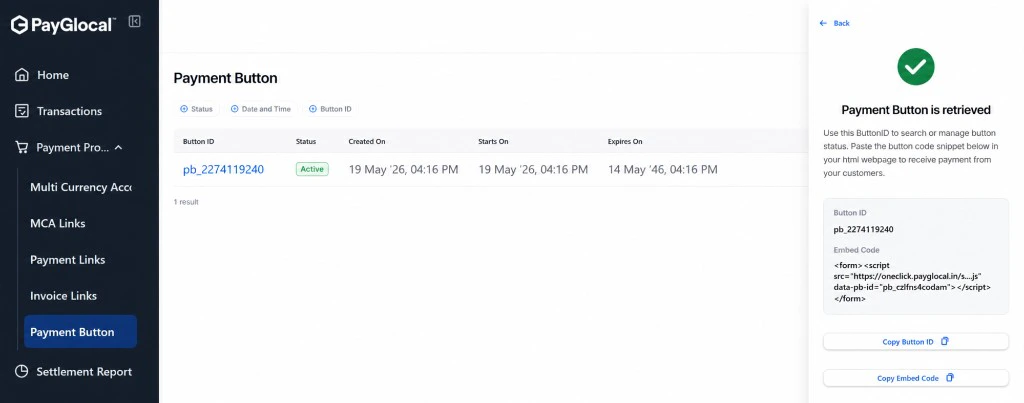
- Click Copy Button ID to save the button reference for search and status checks
- Click Copy Embed Code and paste the snippet into your website HTML where customers will pay
How Payment Button Works
When a customer clicks your payment button:- Button Click: Customer clicks the payment button on your website
- Enter Amount: Customer enters the payment amount (dynamic)
- Enter Details: Customer fills in required information (email/phone if enabled)
- Payment Page: Customer is directed to PayGlocal’s secure checkout
- Complete Payment: Customer completes payment using their preferred method
- Confirmation: Customer receives payment confirmation and returns to your website
Customer Experience
 Screenshot showing customer entering amount and making payment - Coming soon
Managing Payment Buttons
From the Payment Button dashboard, you can:- View All Buttons: See all payment buttons you’ve created
- Check Status: Monitor which buttons are active
- View Transactions: See all payments made through each button
- Edit Button: Update button configuration
- Enable/Disable: Activate or deactivate buttons as needed
Button Embed Preview
 Screenshot showing how the button appears on a website - Coming soon
Next Steps
Payment Link
For fixed amount payments with shareable links
Invoice Link
For formal invoice-style payments
API Integration
For full API integration and customization
Webhooks
Set up real-time payment notifications
Support
- Technical integration help: Email merchant.support@payglocal.in
- Business inquiries: Contact your PayGlocal account manager
- Dashboard access: Reach out to your account manager for credentials